> ## Documentation Index
> Fetch the complete documentation index at: https://docs.mindli.com/llms.txt
> Use this file to discover all available pages before exploring further.
# Split View
> Read your source material and work on your Spark at the same time
export const MndIcon = ({icon, size = 20, color, circle = false}) => {
const iconUrl = `https://app.mindli.com/api/icon/${icon}`;
const [isDarkMode, setIsDarkMode] = React.useState(false);
React.useEffect(() => {
const checkTheme = () => {
const darkClass = document.documentElement.classList.contains('dark');
const darkAttr = document.documentElement.getAttribute('data-theme') === 'dark';
setIsDarkMode(darkClass || darkAttr);
};
checkTheme();
const observer = new MutationObserver(checkTheme);
observer.observe(document.documentElement, {
attributes: true,
attributeFilter: ['class', 'data-theme']
});
return () => observer.disconnect();
}, []);
let finalColor = color;
if (!color) {
finalColor = isDarkMode ? '#FFFFFF' : '#333333';
}
const iconElement = ;
if (!circle) {
return
{iconElement}
;
}
const circleSize = Math.max(size + 6, 20);
return
{iconElement}
;
};
## Overview
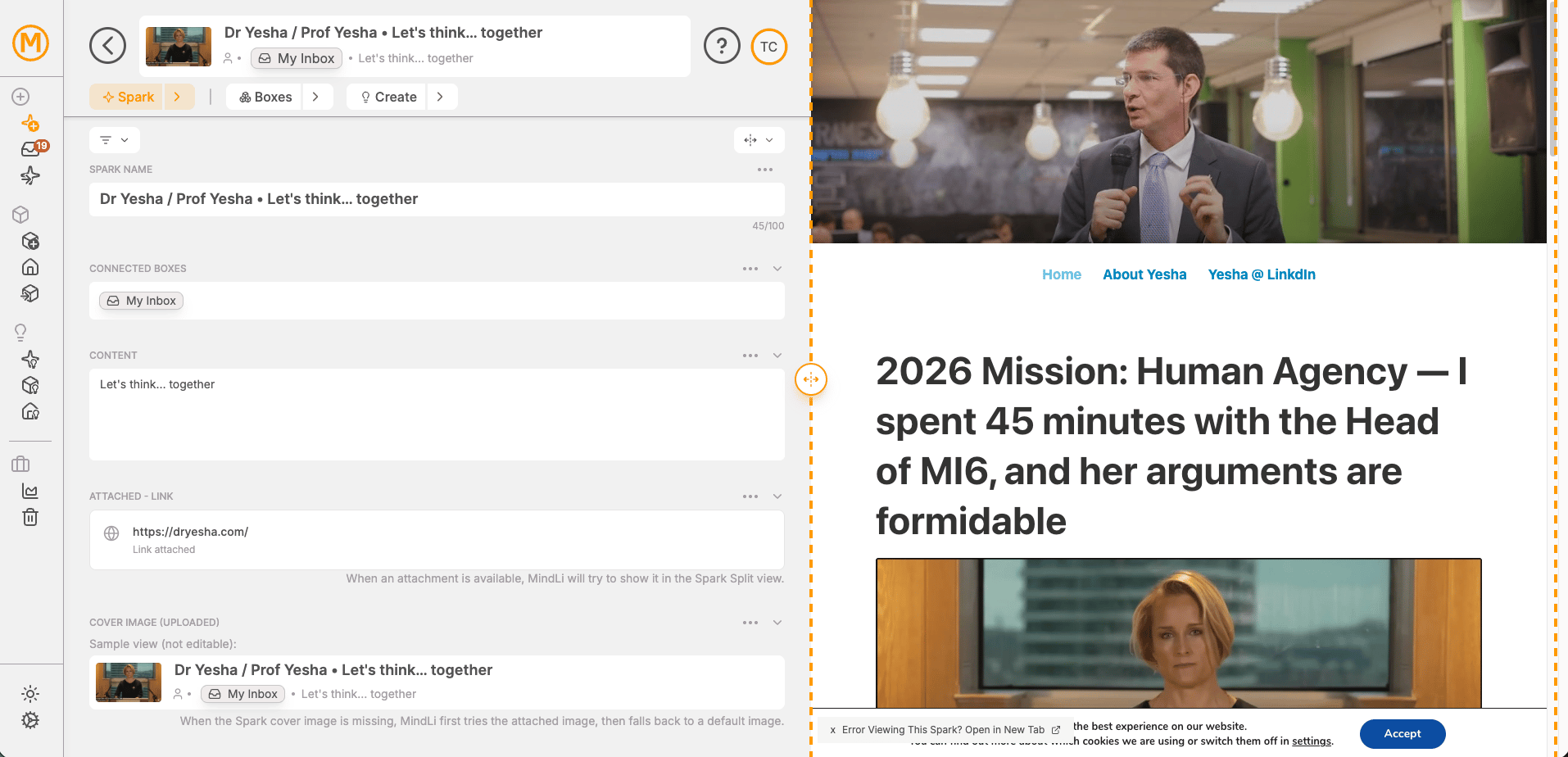
Split View lets you see a Spark and its attached content side by side in the same screen.
Instead of switching back and forth between a link, image, or file and your notes, both stay visible at once — so you can read, compare, and create without losing your place.
***
## How to Open Split View
Open any Spark that has an attachment, then tap the ** Split View** button (a expand/collapse icon) in the Spark toolbar.
Choose one of three modes:
| Mode | What you see |
| --------------------------- | ------------------------------------------ |
| **Spark Only** | The Spark without its attachment |
| **Split: Spark + Attached** | Spark on one side, attachment on the other |
| **Attached Only** | Full-screen view of the attachment |
Drag the divider between the two panels to adjust how much space each side gets.
***
## When to Use It
Split View is most useful when a Spark contains content worth reading alongside your notes:
* A saved **article or webpage** — read and annotate at the same time
* A **PDF** — review the document while writing your takeaways in the Spark
* An **image** — keep the visual in view while editing the Spark's description
* A **voice note transcript** — listen while editing the auto-generated text
***
## On Web
*rotated for side-by-side panels*
On the web app, Split View loads the attached URL inside MindLi's own window and requires the **MindLi Chrome/Edge extension** to be installed and active.
[Install the Chrome/Edge extension](https://chromewebstore.google.com/detail/lkaanmelncdcpikhjpadjkegioolpdeb) and pin it for best results.
Some websites block embedding. If a link won't load in Split View, open it in a new tab instead using the link icon on the Spark.
***
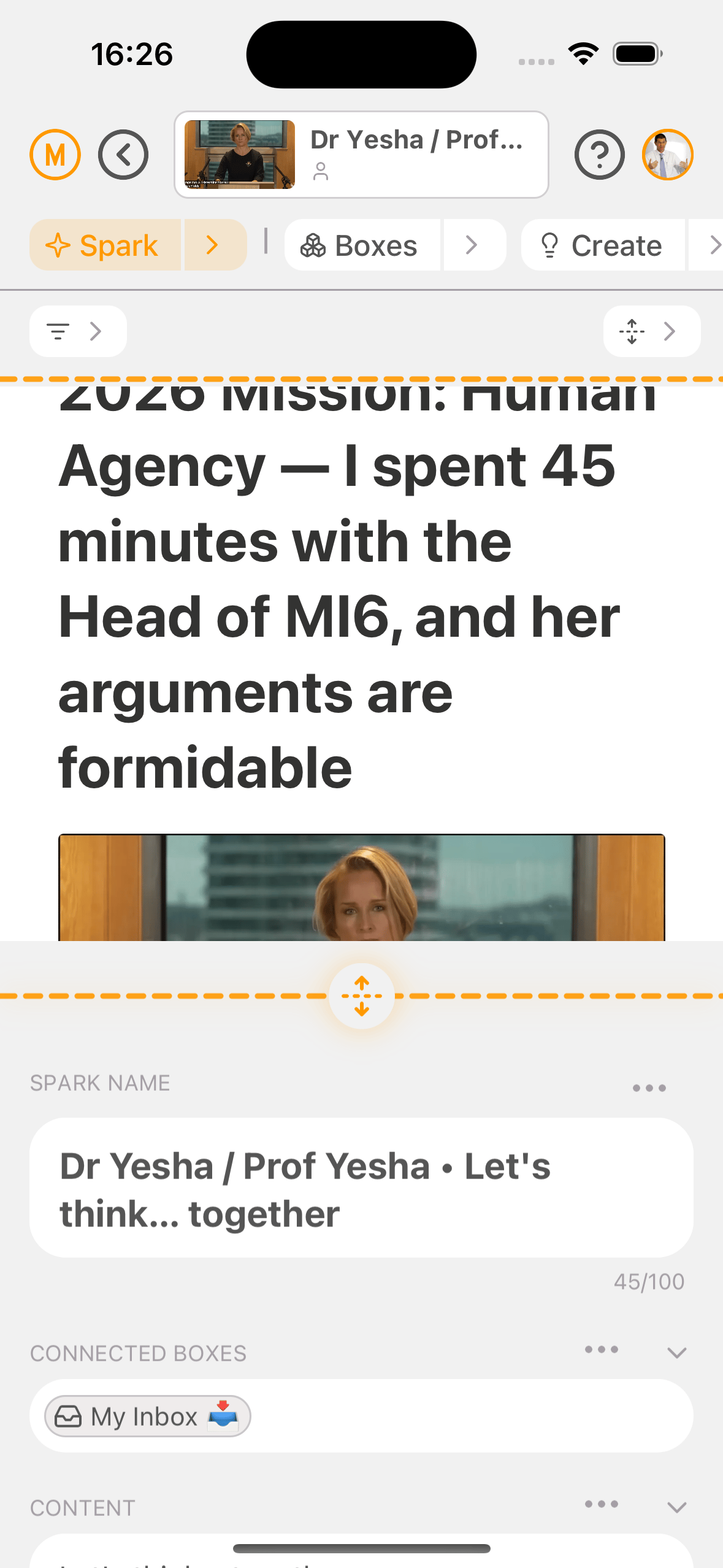
## On Mobile (iOS & Android)
*vertical expand*
On iOS and Android, Split View opens files and images natively on your device — no extension needed. The same button opens content alongside your Spark for side-by-side reading and editing.
Supported attachment types: images, PDFs, files, and other native content.
In the image below, the orange striped lines show the Split View attachment area.