> ## Documentation Index
> Fetch the complete documentation index at: https://docs.mindli.com/llms.txt
> Use this file to discover all available pages before exploring further.
# Using MindLi
> Shared principles and controls that appear across MindLi.
export const MndIcon = ({icon, size = 20, color, circle = false}) => {
const iconUrl = `https://app.mindli.com/api/icon/${icon}`;
const [isDarkMode, setIsDarkMode] = React.useState(false);
React.useEffect(() => {
const checkTheme = () => {
const darkClass = document.documentElement.classList.contains('dark');
const darkAttr = document.documentElement.getAttribute('data-theme') === 'dark';
setIsDarkMode(darkClass || darkAttr);
};
checkTheme();
const observer = new MutationObserver(checkTheme);
observer.observe(document.documentElement, {
attributes: true,
attributeFilter: ['class', 'data-theme']
});
return () => observer.disconnect();
}, []);
let finalColor = color;
if (!color) {
finalColor = isDarkMode ? '#FFFFFF' : '#333333';
}
const iconElement = ;
if (!circle) {
return
{iconElement}
;
}
const circleSize = Math.max(size + 6, 20);
return
{iconElement}
;
};
## Overview
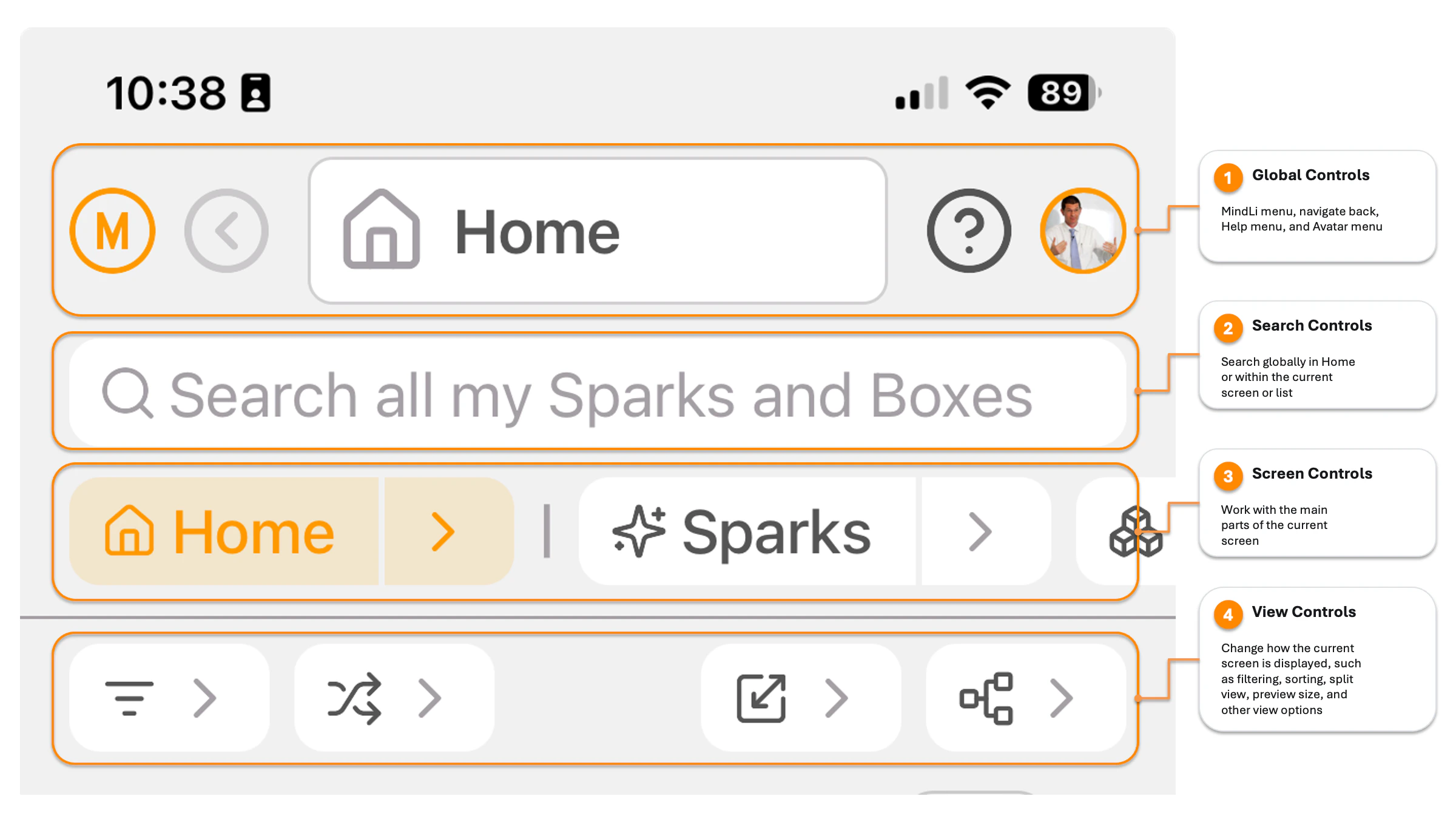
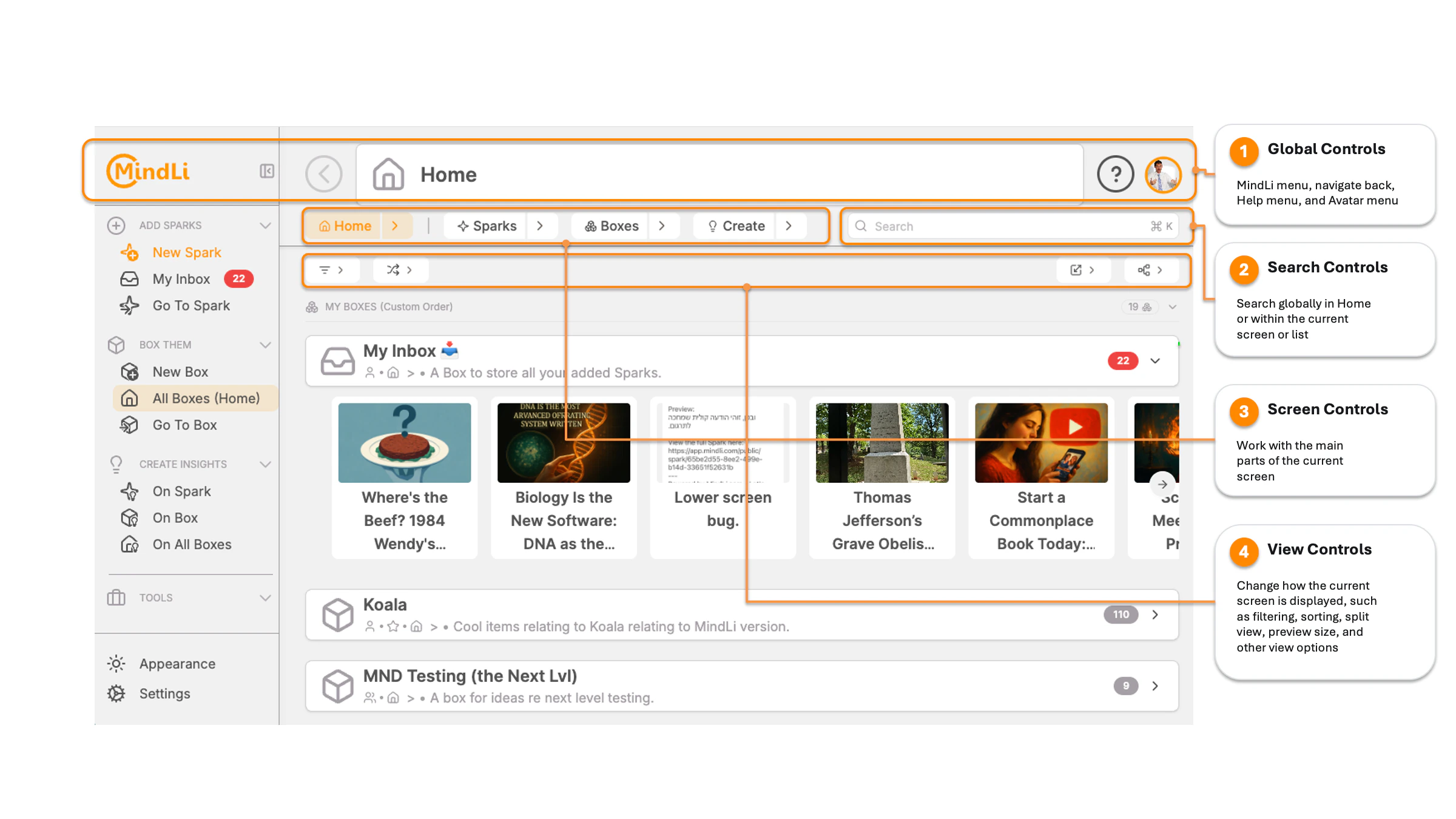
MindLi uses a consistent set of controls across the main screens, including Home, Box, Inbox, Spark, Stats, and Trash.
These controls are organized into four areas:
1. **Global Controls:** Access shared actions such as the MindLi menu, navigate back, Help menu, and Avatar menu
2. **Search Controls:** Search globally in Home or within the current screen or list
3. **Screen Controls:** Work with the main parts of the current screen
4. **View Controls:** Change how the current screen is displayed, including filtering, sorting, split view, preview size, and other view options
 ## Global Controls
In most screens, you will find these shared controls:
* The MindLi menu to quickly Add, Box, Create, and access other tools
* Navigate back to return to the previous screen when available
* The Help menu for inline help, Help Center, Support, and Feedback specific to the screen you are in
* The Avatar menu to view your Recent and Starred Boxes and Sparks
In most screens, you will also find Search Controls, Screen Controls, and View Controls.
### MindLi Menu
The MindLi menu opens the left M bar.
Use it to move through the core MindLi actions: Add, Box, and Create. For more about these thinking steps, see [The ABC Thinking Steps](/get-started/abc-steps).
### Back Button
Use the back button to return to the previous screen when it is available.
### Help Menu
The Help menu gives you support for the screen you are in:
1. ** Show Inline Help:** Display helpful information directly on the current screen
2. ** Help on This Screen:** Open contextual documentation for the current screen
3. ** Help Center:** Access the MindLi documentation at [https://docs.mindli.com/](https://docs.mindli.com/)
4. ** Support:** Get help from the MindLi support team at [https://mindli.com/support](https://mindli.com/support)
5. ** Feedback:** Share your feedback and suggestions at [https://mindli.com/feedback](https://mindli.com/feedback)
6. ** Copy Screen To Clipboard (Web only):** Capture and copy a screenshot of the current screen for sharing or reference
### Avatar Menu
The Avatar menu gives you quick access to your personal MindLi shortcuts:
1. ** Starred Sparks:** View Sparks you marked as important, such as a key idea, a task you want to return to, or a reference you use often
2. ** Starred Boxes:** View Boxes you marked as important, such as your main project Box, a travel plan, or a work area you open often
3. ** Recent Sparks:** Return to Sparks you recently opened or worked with
4. ** Recent Boxes:** Return to Boxes you recently opened or worked with
## Search Controls
Use the Search Controls to search globally in Home or within the current screen or list.
## Screen Controls
Screen Controls work with the main parts of the current screen.
* Home controls help you view presets, refresh data, and work across all Boxes and Sparks.
* Box controls help you work with the current Box, its Sparks, Sub-Boxes, and Create actions.
* Spark controls help you edit the Spark, manage Connected Boxes, and Create from that Spark.
* Trash and Stats controls focus on the data shown in those screens.
## View Controls
View Controls change how the current screen is displayed.
Use them for options such as filtering, sorting, split view, preview size, list or feed display, and other view settings.
## Tips and Toast Colors
MindLi uses three message types in Help, web toasts, and mobile app messages:
1. **Info:** A neutral tip or explanation.
2. **Warning:** Something needs attention before you continue.
3. **Success:** An action finished successfully.
This is an info message. Use it for helpful tips, explanations, and neutral reminders.
## Global Controls
In most screens, you will find these shared controls:
* The MindLi menu to quickly Add, Box, Create, and access other tools
* Navigate back to return to the previous screen when available
* The Help menu for inline help, Help Center, Support, and Feedback specific to the screen you are in
* The Avatar menu to view your Recent and Starred Boxes and Sparks
In most screens, you will also find Search Controls, Screen Controls, and View Controls.
### MindLi Menu
The MindLi menu opens the left M bar.
Use it to move through the core MindLi actions: Add, Box, and Create. For more about these thinking steps, see [The ABC Thinking Steps](/get-started/abc-steps).
### Back Button
Use the back button to return to the previous screen when it is available.
### Help Menu
The Help menu gives you support for the screen you are in:
1. ** Show Inline Help:** Display helpful information directly on the current screen
2. ** Help on This Screen:** Open contextual documentation for the current screen
3. ** Help Center:** Access the MindLi documentation at [https://docs.mindli.com/](https://docs.mindli.com/)
4. ** Support:** Get help from the MindLi support team at [https://mindli.com/support](https://mindli.com/support)
5. ** Feedback:** Share your feedback and suggestions at [https://mindli.com/feedback](https://mindli.com/feedback)
6. ** Copy Screen To Clipboard (Web only):** Capture and copy a screenshot of the current screen for sharing or reference
### Avatar Menu
The Avatar menu gives you quick access to your personal MindLi shortcuts:
1. ** Starred Sparks:** View Sparks you marked as important, such as a key idea, a task you want to return to, or a reference you use often
2. ** Starred Boxes:** View Boxes you marked as important, such as your main project Box, a travel plan, or a work area you open often
3. ** Recent Sparks:** Return to Sparks you recently opened or worked with
4. ** Recent Boxes:** Return to Boxes you recently opened or worked with
## Search Controls
Use the Search Controls to search globally in Home or within the current screen or list.
## Screen Controls
Screen Controls work with the main parts of the current screen.
* Home controls help you view presets, refresh data, and work across all Boxes and Sparks.
* Box controls help you work with the current Box, its Sparks, Sub-Boxes, and Create actions.
* Spark controls help you edit the Spark, manage Connected Boxes, and Create from that Spark.
* Trash and Stats controls focus on the data shown in those screens.
## View Controls
View Controls change how the current screen is displayed.
Use them for options such as filtering, sorting, split view, preview size, list or feed display, and other view settings.
## Tips and Toast Colors
MindLi uses three message types in Help, web toasts, and mobile app messages:
1. **Info:** A neutral tip or explanation.
2. **Warning:** Something needs attention before you continue.
3. **Success:** An action finished successfully.
This is an info message. Use it for helpful tips, explanations, and neutral reminders.
In the Help Center, we also use this to share "smart" tips.
This is a warning message. Use it when something needs attention, could be risky, or may change what happens next.
In the Help Center, we also use this to point out important limits, risks, or things to check.
This is a success message. Use it when an action is complete or saved.
In the Help Center, we also use this to talk about advanced smart usage of MindLi.