
Overview
Split View lets you see a Spark and its attached content side by side in the same screen. Instead of switching back and forth between a link, image, or file and your notes, both stay visible at once — so you can read, compare, and create without losing your place.How to Open Split View
Open any Spark that has an attachment, then tap the Split View button (a expand/collapse icon) in the Spark toolbar. Choose one of three modes:
Drag the divider between the two panels to adjust how much space each side gets.
When to Use It
Split View is most useful when a Spark contains content worth reading alongside your notes:- A saved article or webpage — read and annotate at the same time
- A PDF — review the document while writing your takeaways in the Spark
- An image — keep the visual in view while editing the Spark’s description
- A voice note transcript — listen while editing the auto-generated text
On Web
rotated for side-by-side panels On the web app, Split View loads the attached URL inside MindLi’s own window and requires the MindLi Chrome/Edge extension to be installed and active. Install the Chrome/Edge extension and pin it for best results.Some websites block embedding. If a link won’t load in Split View, open it in a new tab instead using the link icon on the Spark.
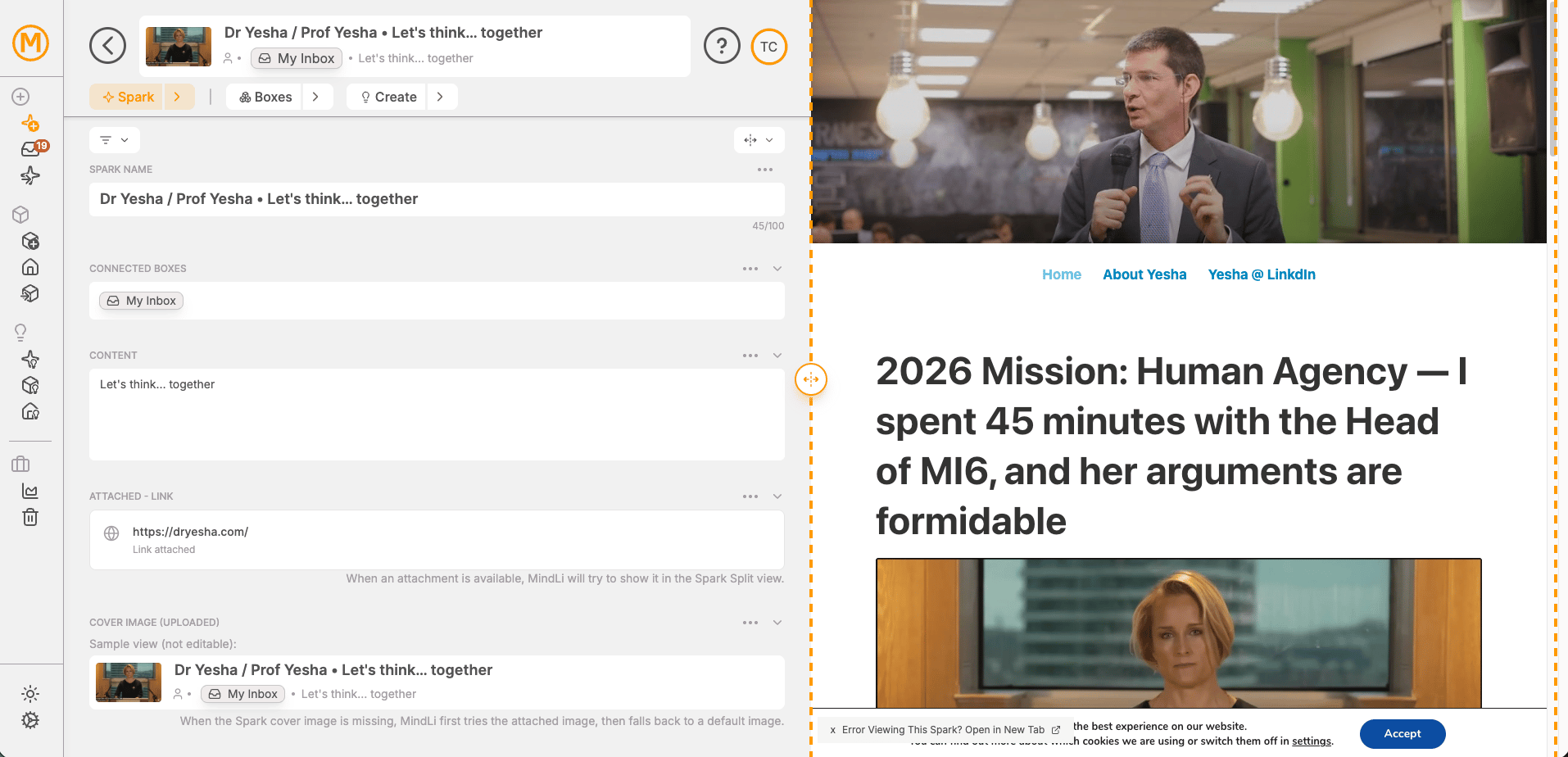
MindLi Split View on web
On Mobile (iOS & Android)
vertical expand On iOS and Android, Split View opens files and images natively on your device — no extension needed. The same button opens content alongside your Spark for side-by-side reading and editing. Supported attachment types: images, PDFs, files, and other native content. In the image below, the orange striped lines show the Split View attachment area.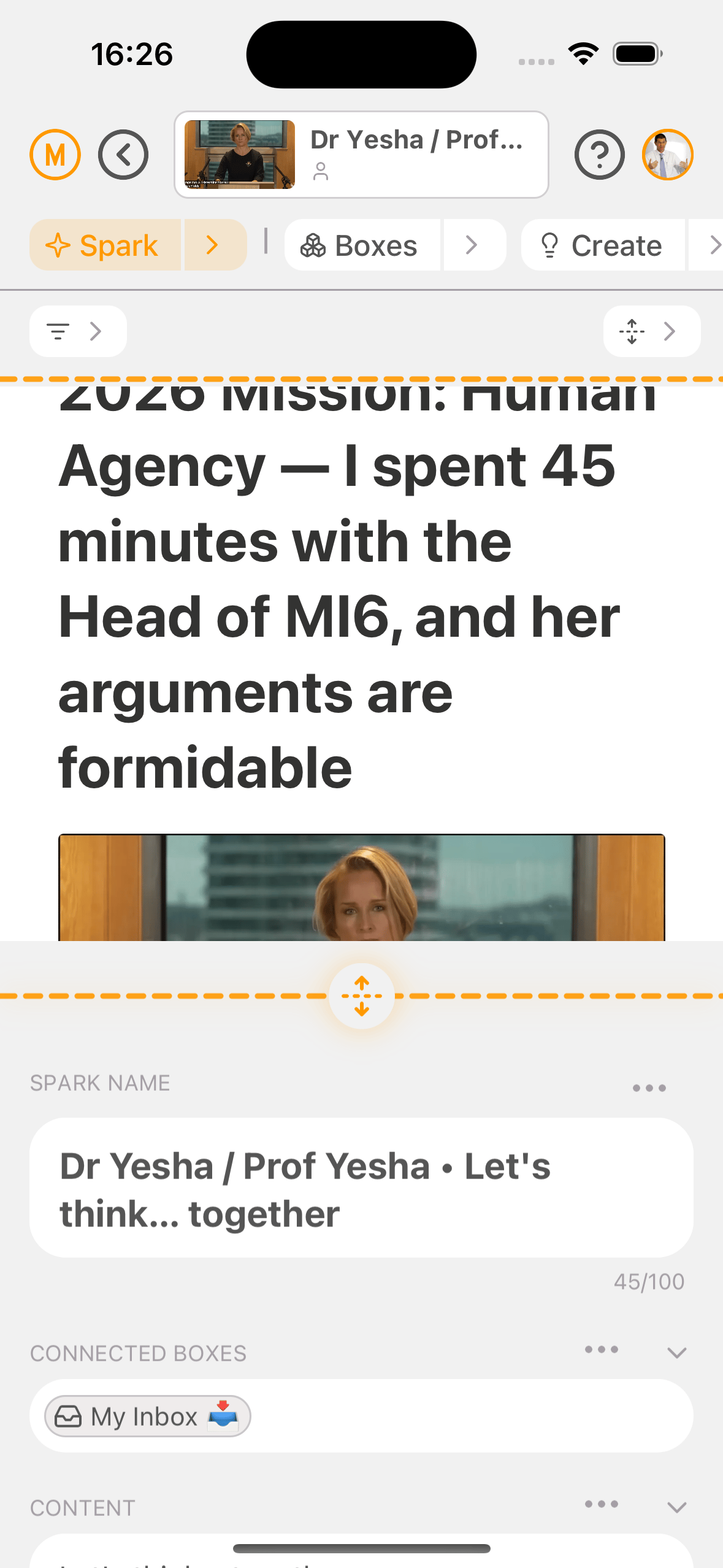
MindLi Split View on mobile